 klingainsfw.com
AI Image to Video
Turn a photo or storyboard frame into a short clip. Use the image to set the composition, then tell the model what moves and what should stay steady.
Animate an image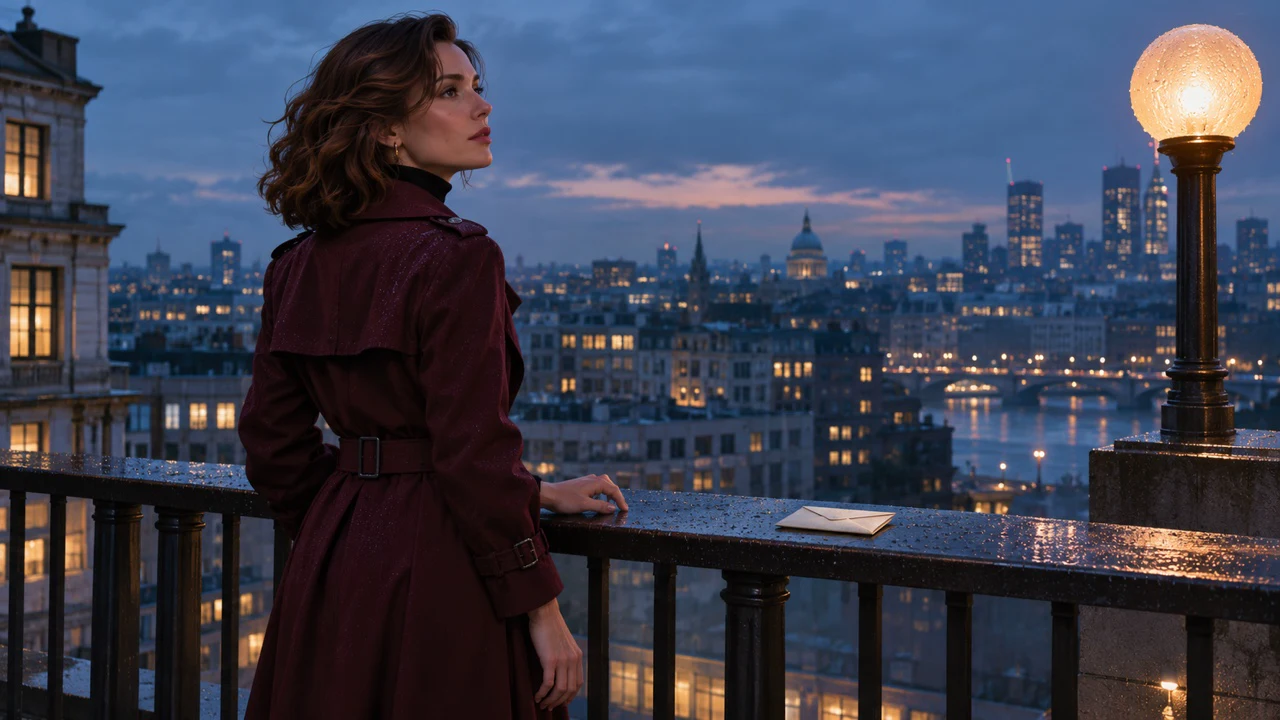
How do I turn a photo into an AI video?
Upload a photo you have permission to use, choose an image-to-video model in Studio, and write a short prompt describing what should move. For your first clip, give the subject one action and specify whether the camera should move or stay still. See how two camera directions change the same scene.
Leave room for movement
Choose a sharp frame with space in the direction your subject will move. A tight crop can make even a small turn hard to frame.
Direct the subject and camera separately
Try “The coat hem moves slightly in the wind. Keep the camera locked and the skyline steady.”
Compare the first and last frames
After generating, check the subject’s outline and straight edges such as the railing. If they shift unexpectedly, try a smaller movement before changing models.
- Input
- An image you have permission to use and a short motion prompt
- Output
- A clip guided by the framing of your starting image
- Credit estimate
- Choose a model and settings in Studio to see the estimate. Compare it with the credits in available plans and packs.
Rooftop Letter
An ivory envelope waits on a rain-soaked rooftop. Watch what changes when the woman picks it up and turns toward the viewer, first with a locked camera and then with a slow push-in.
We generated both clips with Wan 3.0 via MuleRouter (w3.0-video). Each clip is 8 seconds, 720p, 16:9 and silent. Both runs used the same starting image, seed and scene prompt with prompt enhancement off. Only the last sentence changed.
“In one continuous blue-hour rooftop shot, the woman looks down, picks up the ivory envelope from the wet railing, then turns toward the viewer and holds it at her waist with a faint, knowing smile. The globe lamp stays lit.”
Locked camera
“Keep the camera locked at the starting position.”
The lamp stays fully in frame and the skyline holds fairly steady as she turns with the letter.
Slow push-in
“Slowly push the camera toward her throughout the shot.”
Her face and the letter fill more of the closing frame. The globe lamp is partly cropped at the right edge.
Compare the lamp and railing to see how the framing changes. To try the same camera directions, check the available models, clip lengths and credit estimates in Studio. See an example that starts from text instead.
Before you start
Why does the framing drift with a locked-camera prompt?
A locked camera is a prompt direction. The model can still redraw details between frames. Try a shorter, simpler action and check whether fixed objects hold their position in the next take.
How do I choose an image-to-video model?
Start with a model that accepts your source image and offers the duration and resolution you need. Try a short, lower-resolution clip to check the motion and framing. Before you increase the resolution or enable audio, review the new credit estimate and check whether the setting requires a subscription.
What content rules apply in Studio?
Studio is for adults 18 and older. Use material you have permission to transform and get informed consent for the intended use of any real adult’s likeness. Sexual content involving minors or age-ambiguous subjects and non-consensual intimate imagery are prohibited. Each model has its own rules. See our Terms of Service.